Energy Consumption Measurement
This IT4I-specific guide summarizes the available options for viewing energy consumption and CO2e emissions and explains when to use each of them.
Overview: Which Option to Use
| Option | Where | Target Group | Granularity | When to use |
|---|---|---|---|---|
get_energy command-line utility | Login nodes | Users | Job-level and aggregated totals (across matching jobs) | Automation, exports (CSV/JSON), filtering by account/project and time windows |
| SCS (web) | Web | Project PIs | Project/account totals | High-level reporting for a project/account (no per-job detail) |
| RS Web (+ linked Grafana) | Web | Users | Per-job detail | Quick interactive inspection of a specific finished job |
Notes:
- Energy/CO2e values are available only for finished jobs.
- Access differs by tool (e.g., SCS visibility depends on permissions).
Command-Line Utility get_energy
The get_energy utility is available on cluster login nodes.
Use this tool to query energy consumption for your finished jobs, or for finished jobs in projects where you share membership with another user. Running jobs are not supported.
The default output (-f/--format sum) also lets you aggregate totals across all matching jobs.
With -a/--account, this can be used to get project/account-level consumption for a given time window.
Important behavior
-c/--cluster-nameis required and must match a valid cluster name for your deployment (at IT4I:karolina,barbora).- You must provide at least one filter, otherwise the tool prints help and exits.
Basic usage
get_energy -c <cluster_name> --allFilters and Access Rules
--allreturns all your jobs in the specified time window.-j/--job-idfilters by a specific scheduler job ID.-u/--usernameis allowed only if you and the requested user share at least one account.-a/--accountis allowed only if you are a member of that account.-s1/--submit-time-start,-s2/--submit-time-end,-s3/--submit-time-exactfilter by submit time.- Times can be UNIX timestamps (seconds) or UTC datetimes like
YYYY-MM-DD HH:MM:SS(quote values that contain spaces).
- Times can be UNIX timestamps (seconds) or UTC datetimes like
Default time window
If you do not pass -s1, the tool sets a default start time to “now minus ~182 days”.
If you do not pass -a/--account, the tool automatically queries all your accounts/projects by default.
Output Options
-f/--formatselectssum(default) orlist.sumaggregates totals across all matching jobs.listreturns per-job rows and includes job-level errors.
-o/--outputselectstable(default),json, orcsv.csvwrites a file. Use--output-pathto control the path or directory.
-x/--calculate-if-missingretries missing energy calculations (may take longer).
Examples
# All your jobs on a cluster in the last ~182 days (default window)
get_energy -c <cluster_name> --all

# Single job, sum output in JSON
get_energy -c <cluster_name> -j 123456 -o json

# Jobs in a specific account (must be your account)
get_energy -c <cluster_name> -a my_project --all

# Jobs submitted in a specific range (timestamps or human-readable UTC datetimes)
get_energy -c <cluster_name> --all -s1 "2025-01-01 00:00:00" -s2 "2025-02-01 00:00:00"

# CSV export to a specific file
get_energy -c <cluster_name> --all -o csv --output-path energy_cluster.csv
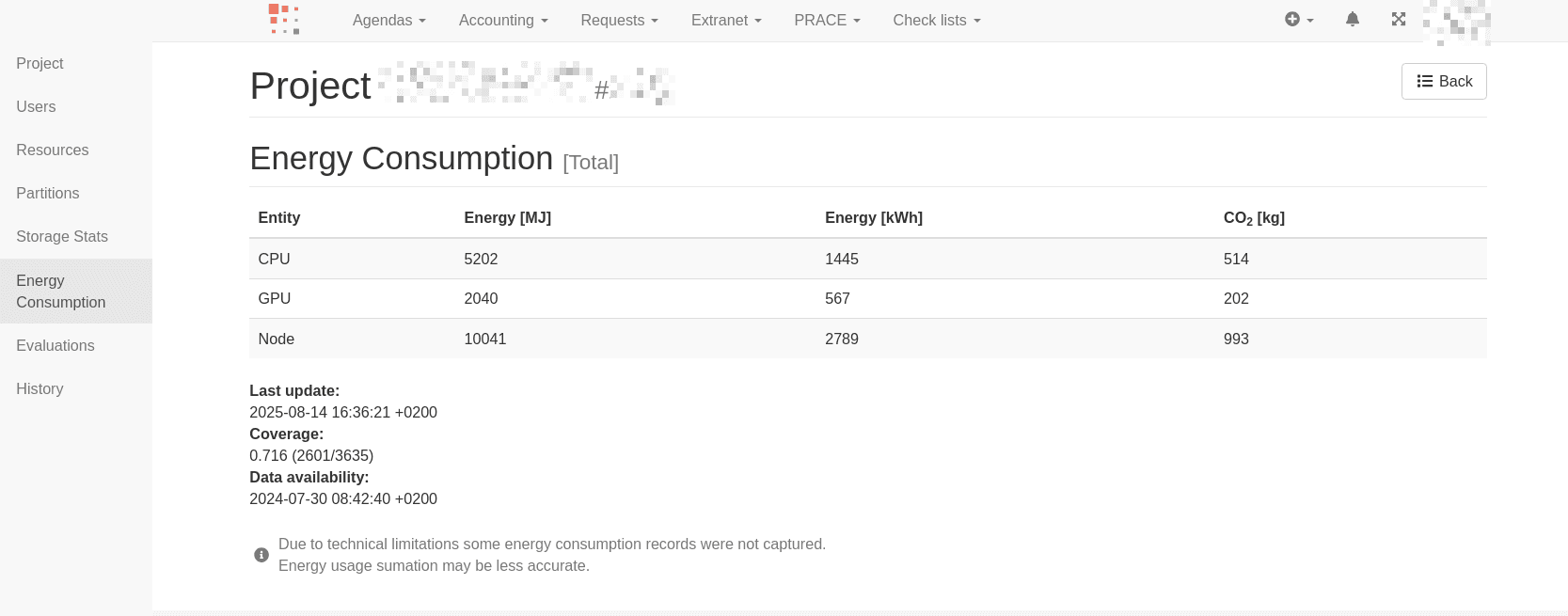
SCS Energy and CO2e Emissions Per Project
Use SCS to view aggregated energy consumption and CO2e emissions at the project/account level. Visible only for PI of project (depending on SCS permissions).
Data is exported to the SCS database hourly and also via a daily backfill. In the worst case, newly finished jobs will appear with a delay of up to one day.
RS Web/Grafana Energy and CO2e Emissions Per Job
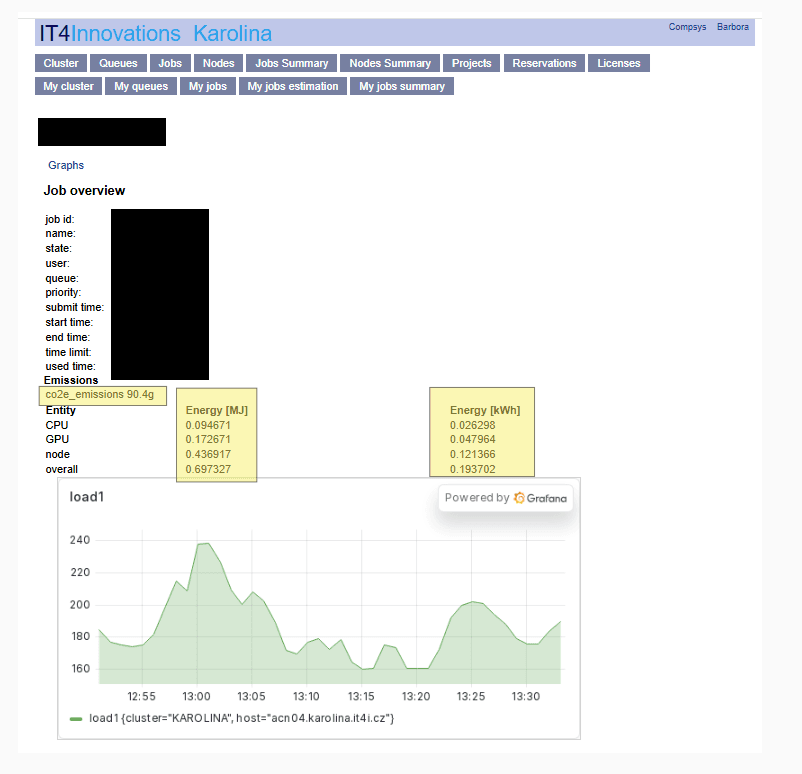
Use RS Web (and optionally linked Grafana dashboards) to view per-job energy consumption and CO2e emissions.
Energy and CO2e emissions values are available only for finished jobs (e.g., COMPLETED, CANCELED, FAILED, …)
and only for jobs running on CN/ACN nodes on Karolina/Barbora.
Step-by-Step (RS Web)
- Open: https://extranet.it4i.cz/rsweb/karolina
- Click the My Jobs tab
- Open the detail of a finished job
- In the Job overview section you will find:
- Emission = job emissions
- Entity = job energy
- Grafana graph(s)