
Access
The VLQ quantum computer, is deployed as a joint collaboration between EuroHPC JU and the LUMI-Q Consortium. To serve all involved parties, the access mechanism differs from standard IT4Innovations access method. Below we provide an overview as well as particular steps to be taken.
Please use the example Jupyter notebooks GHZ_example.ipynb and GHZ_example_pulse.ipynb to jumpstart execution on the VLQ machine.
Overview
- Get allocation
- Allocations are handed out in QPU seconds.
- Apply for allocation to EuroHPC JU
- Apply for allocation to IT4Innovations, e-Infra CZ
- Apply for allocation to one of the LUMI-Q national Brokers
- Once allocated, you will receive:
- PROJECT id (string)
- RESOURCE id (string)
- Log in to https://portal.lexis.tech
- Request project access
- AUP and activation
- Set up Python environment
- Execute circuits on the VLQ machine
LUMI-Q Brokers
Contact relevant Broker to get an allocation on VLQ. Before applying for a VLQ quantum computer allocation, visit the Estimating Consumption on VLQ guide to understand resource accounting and accurately estimate your needs.
| Country / Beneficiary | Broker Name | Broker Abbreviation | RESOURCE id |
|---|---|---|---|
| EuroHPC JU | The European High Performance Computing Joint Undertaking | EuroHPC JU | VLQ-EU |
| Czech Republic | IT4Innovations, VSB-TUO | IT4I | VLQ-CZ |
| Finland | CSC - IT Center for Science | CSC | VLQ-FI |
| Sweden | Chalmers University of Technology | Chalmers | VLQ-SE |
| Denmark | The Danish e-infrastructure Consortium | DeIC | VLQ-DK |
| Poland | Akademickie Centrum Komputerowe Cyfronet AGH | Cyfronet | VLQ-PL |
| Norway | Sigma2 AS | Sigma2 | VLQ-NO |
| Belgium | University of Hasselt | UHasselt | VLQ-BE |
| Netherlands | SURF | SURF | VLQ-NL |
The PI will get the PROJECT id from his Broker.
portal.lexis.tech
Log in to https://portal.lexis.tech. Use your MyAccessID credentials to log in.
Once logged in, navigate to Projects menu and click the Request project access button
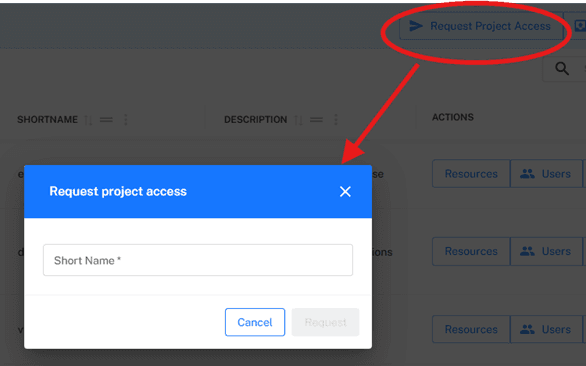
Fill in the PROJECT ID. Click Request.
IT4I support will contact you, asking for AUP and confirming the project activation.
Set Up Python Environment
The VLQ machine is accessed via Python compatible API. The Python environment should be installed on the machine, from where you will execute circuits on VLQ. This may be a comute node of any HPC system (LUMI, Karolina, Vega, Meluxina, etc.), or your desktop, laptop or any other computer of your choice, with adequate network connectivity.
The Python environment can be complex and sensitive to a particular Python version. We recommend using environment management system such as conda or venv.
With conda, follow these steps:
# create conda vlq environment
conda create --name vlq

conda activate vlq
Once the conda environment is activated, install the mandatory modules:
Loading…We recommend to also install jupyter notebooks and vizualization modules:
# install jupyter notebooks and matplotlib module
conda install jupyter
pip3 install matplotlib
Your environment is now set up!
Upgrade Python Environment
We recommend to delete the old environment and install new one.
With conda, follow these steps:
# delete conda vlq environment
conda env remove --name vlq
Continue to Set Up Python Environment.
Execute on VLQ
The execution is from within Python. To execute, you need to get access token. Once the access token is obtained, it may be saved and reused.
Gate Level Execution
The access token, along with PROJECT id and RESOURCE id is used to get the backend Python object, that can be used to submit circuits into VLQ machine.
from py4lexis.session import LexisSession
from qaas.client import QProvider, QBackend, QJob

# 1. Authentication
lexis_session = LexisSession()
token = lexis_session.get_access_token()

# 2. Configure resources
PROJECT = "PROJECT id"   # e.g. OPEN-37-1
RESOURCE = "RESOURCE id" # e.g. VLQ-CZ

# 3. Initialize QaaS
provider = QProvider(PROJECT, token)
backend:QBackend = provider.get_backend(RESOURCE)
Call token = lexis_session.get_access_token() to authenticate.
This will automatically open a login page where you can enter your MyAccessID credentials.
Once you log in, the method will detect it and return the token.
Auto-redirect
If the login page redirect doesn’t happen automatically- open it manually. The URL is printed to the output
Please use the example jupyter notebook GHZ_example.ipynb to jumpstart gate level execution on the VLQ machine.
Pulse Level Execution
The access token, along with PROJECT id and RESOURCE id is used to get the pulla Python object, that can be used to submit pulse schedule playlists into VLQ machine.
from py4lexis.session import LexisSession
from qaas.client import QProvider, QBackend, QJob

# 1. Authentication
lexis_session = LexisSession()
token = lexis_session.get_access_token()

# 2. Configure resources
PROJECT = "PROJECT id"   # e.g. OPEN-37-1
RESOURCE = "RESOURCE id" # e.g. VLQ-CZ

# 3. Initialize QaaS
provider = QProvider(PROJECT, token)
pulla = provider.get_pulla(RESOURCE)
Pulse level execution controls the VLQ quantum computer by directly specifying pulse waveforms, timing, and calibration data sent to hardware, instead of submitting abstract, pre-compiled gate circuits. On VLQ we use Pulla, an IQM’s client library for pulse-level access and control.
Please use the example jupyter notebook GHZ_example_pulse.ipynb to jumpstart pulse level execution on the VLQ machine.
Examples and Documentation
Further examples and documentation may be found at our Quantum-as-a-Service Github page and the IQM documentation pages.